Shopify app
Arasta for Shopify
Answers from your orders, fulfilments, products and shop policies, right inside your storefront. Installed in minutes, billed through Shopify.
Smaller shop? Start on the Starter plan at £29 a month. See pricing
How installation works
- 1
Install and approve permissions
Shopify shows the read permissions the app needs. Arasta never writes to your store.
- 2
Create your account
Sign in or create a Arasta account; your store is connected automatically.
- 3
Choose a plan in Shopify
Approve the subscription in Shopify admin. Charges appear on your Shopify invoice.
- 4
Turn on the app embed
Enable the Arasta app embed in your theme editor, then follow the go-live checklist.
What you will see
Screens from the Arasta dashboard during a Shopify installation.
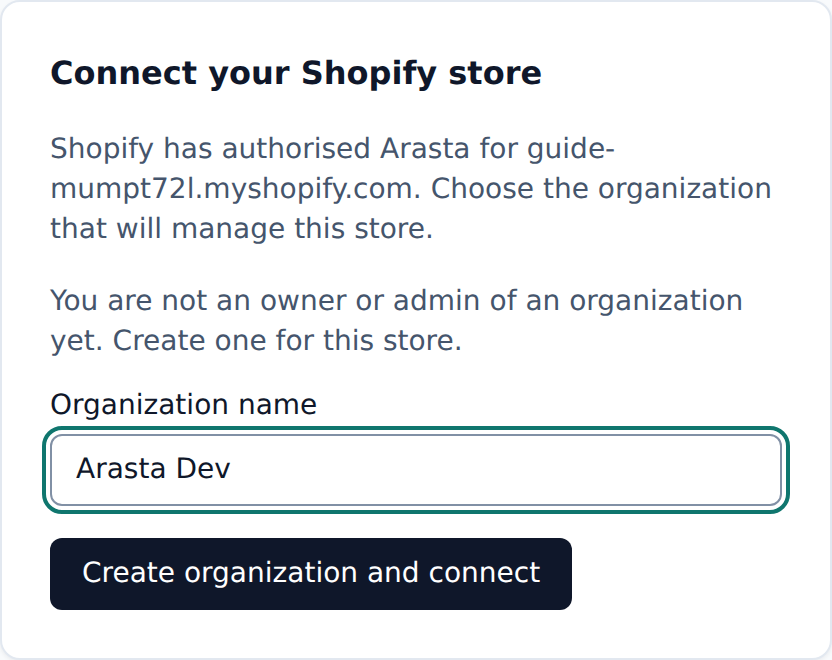
- 1
Connect the store to your account
After you approve the permissions in Shopify, sign in or create an account and connect the store to a new or existing organization.
- 2
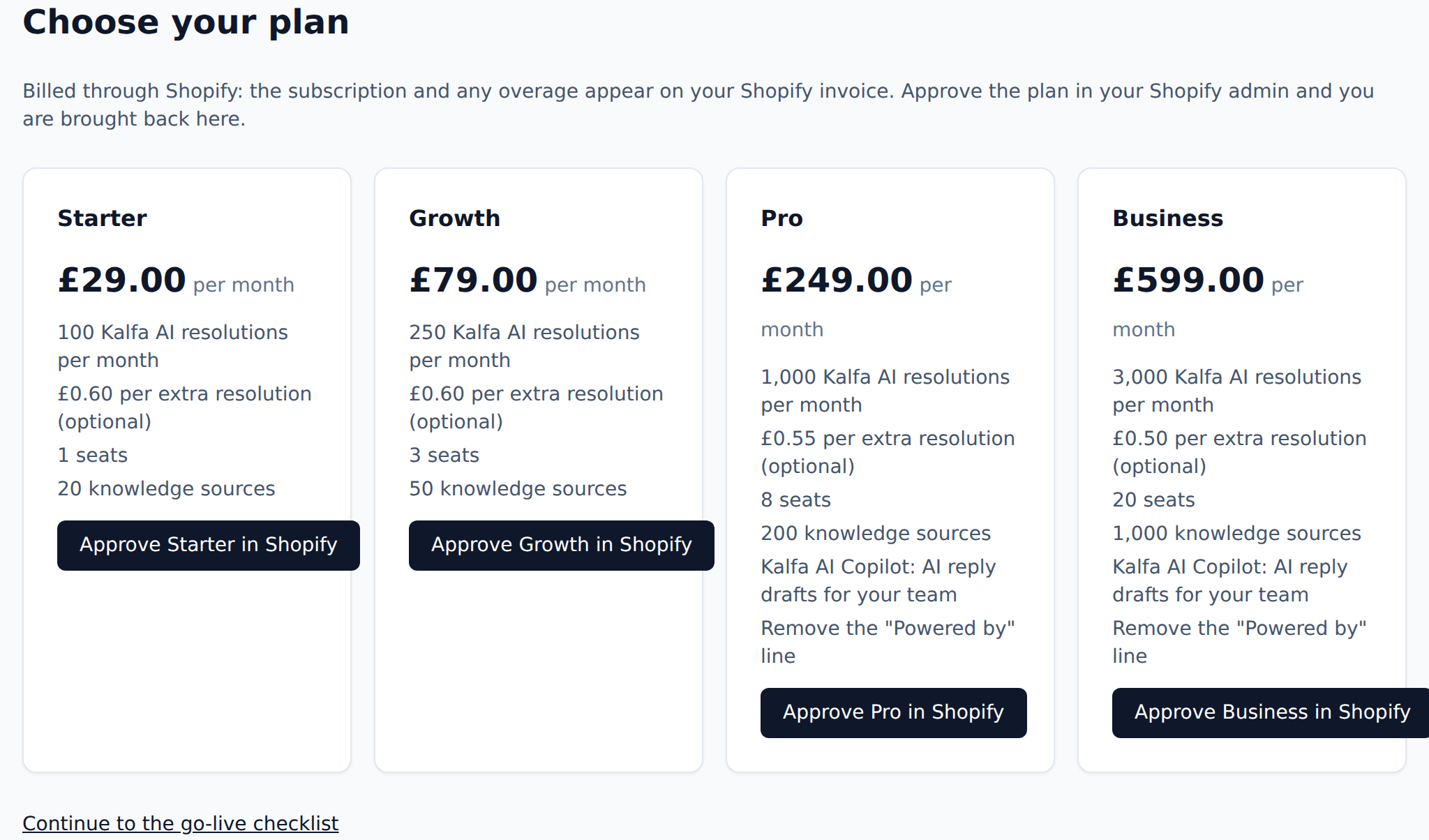
Choose a plan
Pick a plan and approve it in Shopify admin. The subscription and any overage appear on your Shopify invoice.
- 3
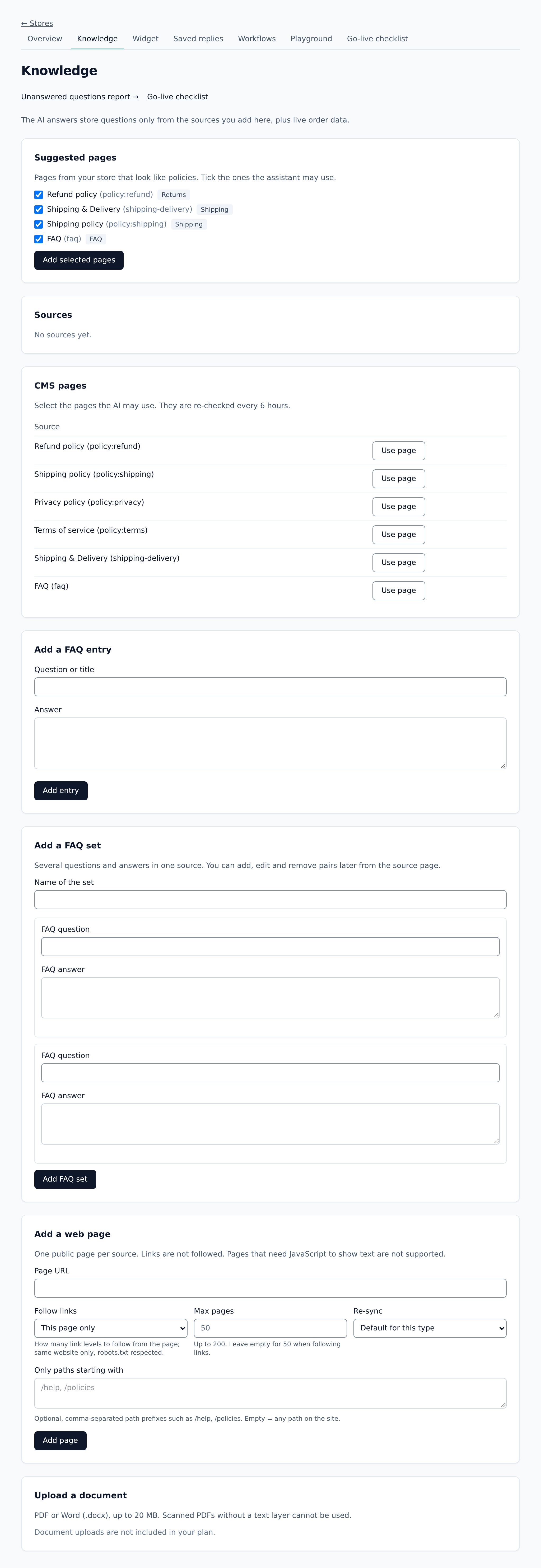
Add your pages and policies
Arasta suggests the pages and shop policies that answer most questions: returns, shipping, contact. Add them with one click.
- 4
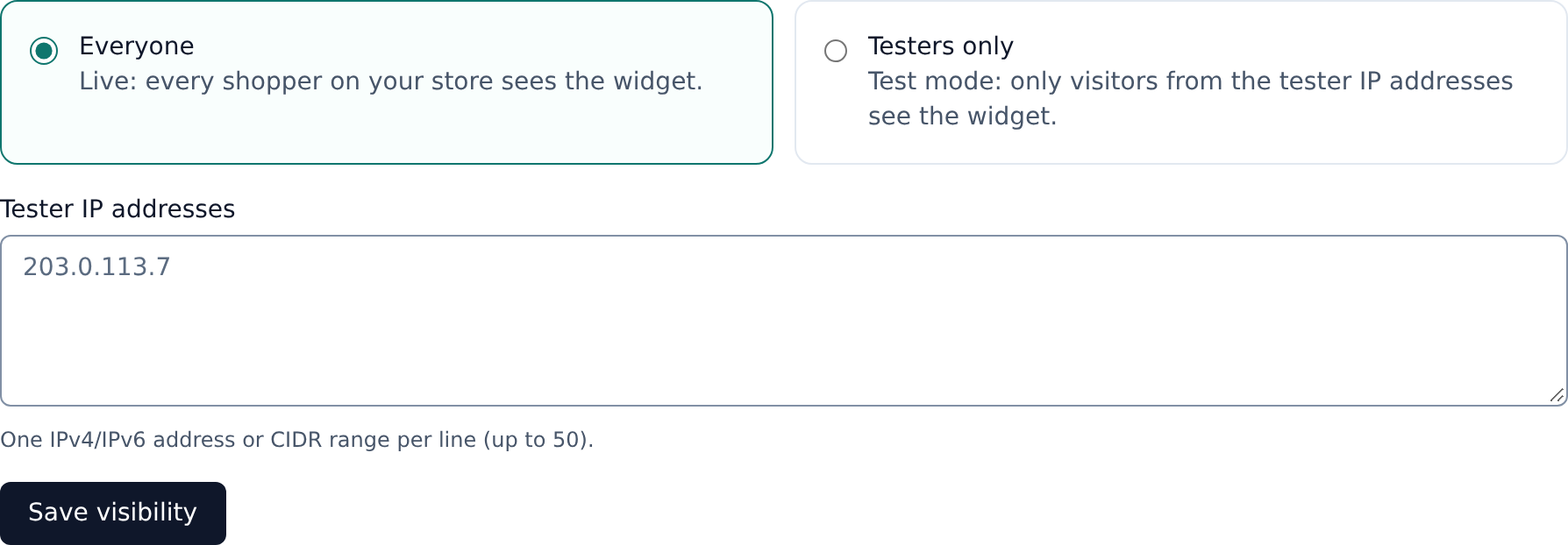
Test, then go live
Switch on the app embed in your theme editor, keep the widget visible to testers only while you try it, then open it to everyone.
Permissions the app requests
Read-only access, used only to answer your customers' questions.
- Orders and fulfilments, to answer order and delivery questions
- Customers, to match an order to the person asking
- Products, to answer product questions
- Pages, policies and online store content, as knowledge sources
- Markets, locales and themes, to reply in the right language and detect the widget
Questions merchants ask
What are Kalfa AI sessions and resolutions?
A session is a conversation in which Kalfa AI sent at least one reply. A resolution is a conversation Kalfa AI handled from start to finish, with no hand-off and no reply from your team, that was not reopened and not followed by a new conversation about the same thing within 48 hours. You can flag a resolution you disagree with, and a credited one is not charged.
Can I try it before customers see it?
Yes. The playground chats against your real store connection without counting towards your plan, and shadow mode lets the AI draft replies that your team approves before they are sent.
Which store data does it use?
It reads orders, shipments, invoices, customers and products through the store's API at the moment a customer asks, plus the knowledge sources you approve. Order details are shown only after the customer has verified ownership.
Which languages does it speak?
The widget follows the language of your storefront, and the AI replies in the customer's language, using the knowledge you added for that locale. The dashboard is in English.