Setup guide · Adobe Commerce and Magento
Connect Adobe Commerce or Magento
Create a Magento integration, paste its four credentials into Arasta, check what your store supports and add one script tag. Nothing is installed on your server unless you want the optional connector module.
Works with Magento Open Source 2.4 and Adobe Commerce (cloud or on-premises). The optional connector module needs Magento 2.4.7 or later and PHP 8.2–8.4.
Step by step
The screenshots show the Arasta dashboard; the Magento admin steps are described in text.
- 1
Create an integration in the Magento admin
In the Magento admin open System → Extensions → Integrations → Add New Integration and name it after Arasta.
- On the API tab grant access to Sales, Customers, Catalog, Content and Stores. Arasta only reads; it never changes orders or products.
- Save, then press Activate and Allow.
- Magento shows four values: Consumer key, Consumer secret, Access token and Access token secret. Keep the window open for step 3.
- 2
Add your store in Arasta
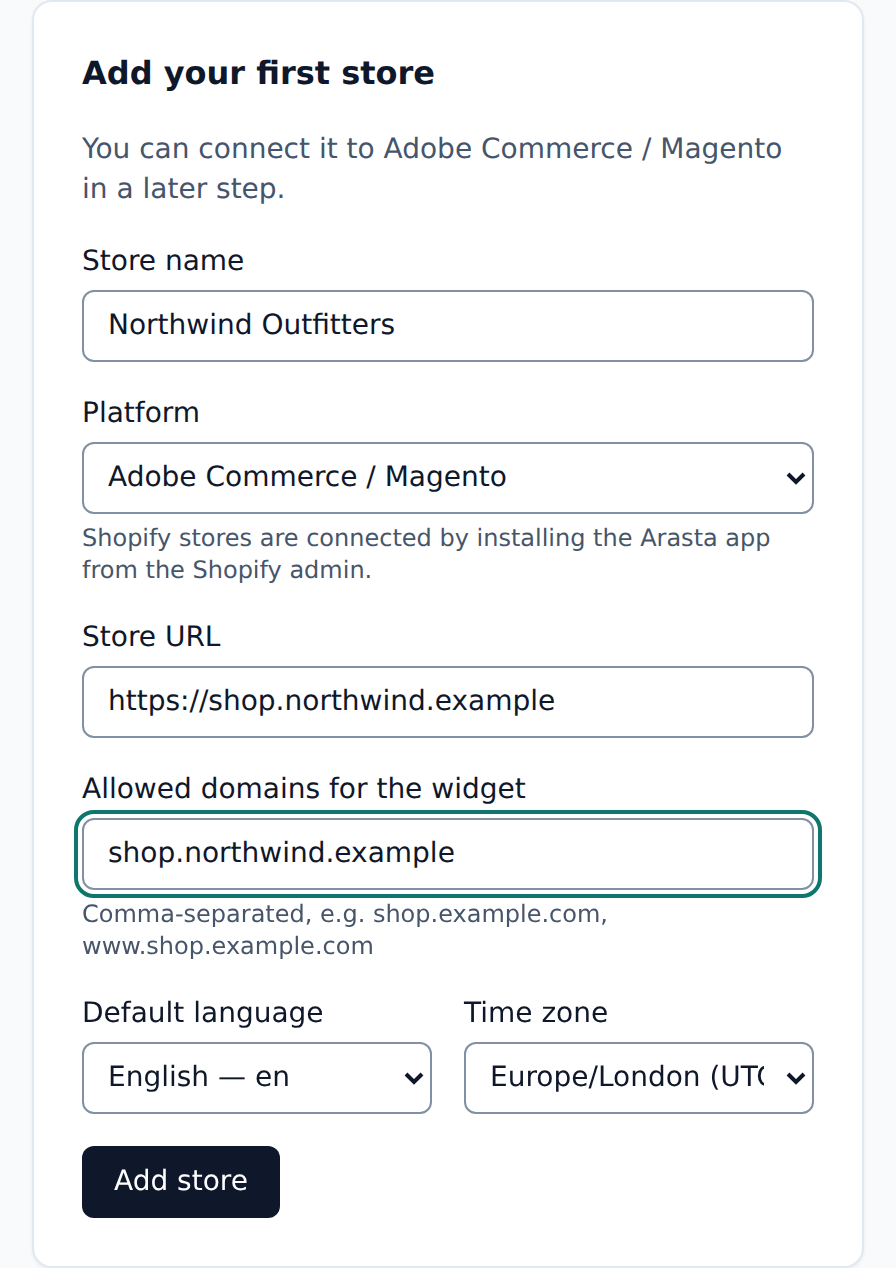
Sign up, create your organization and add the store: its name, its URL and the domains the chat widget may load on. The default language and time zone are chosen from a list and can be changed later.
- 3
Paste the four credentials
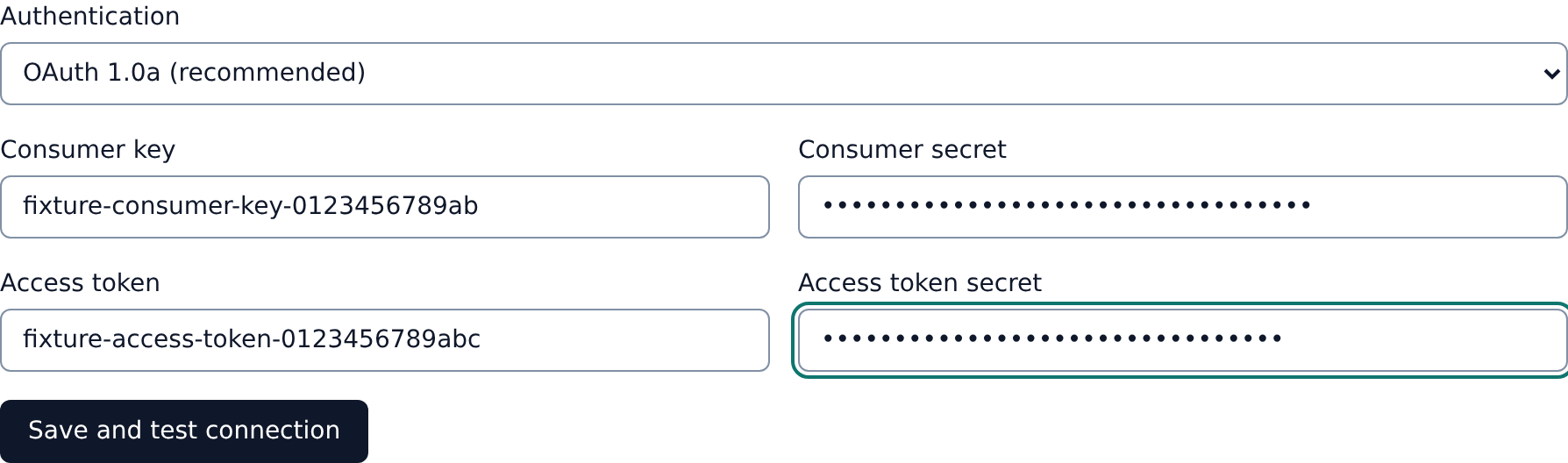
Open the store, choose OAuth 1.0a in the Adobe Commerce / Magento connection card, paste the four values and press Save and test connection. The credentials are stored encrypted.
- 4
Check what your store supports
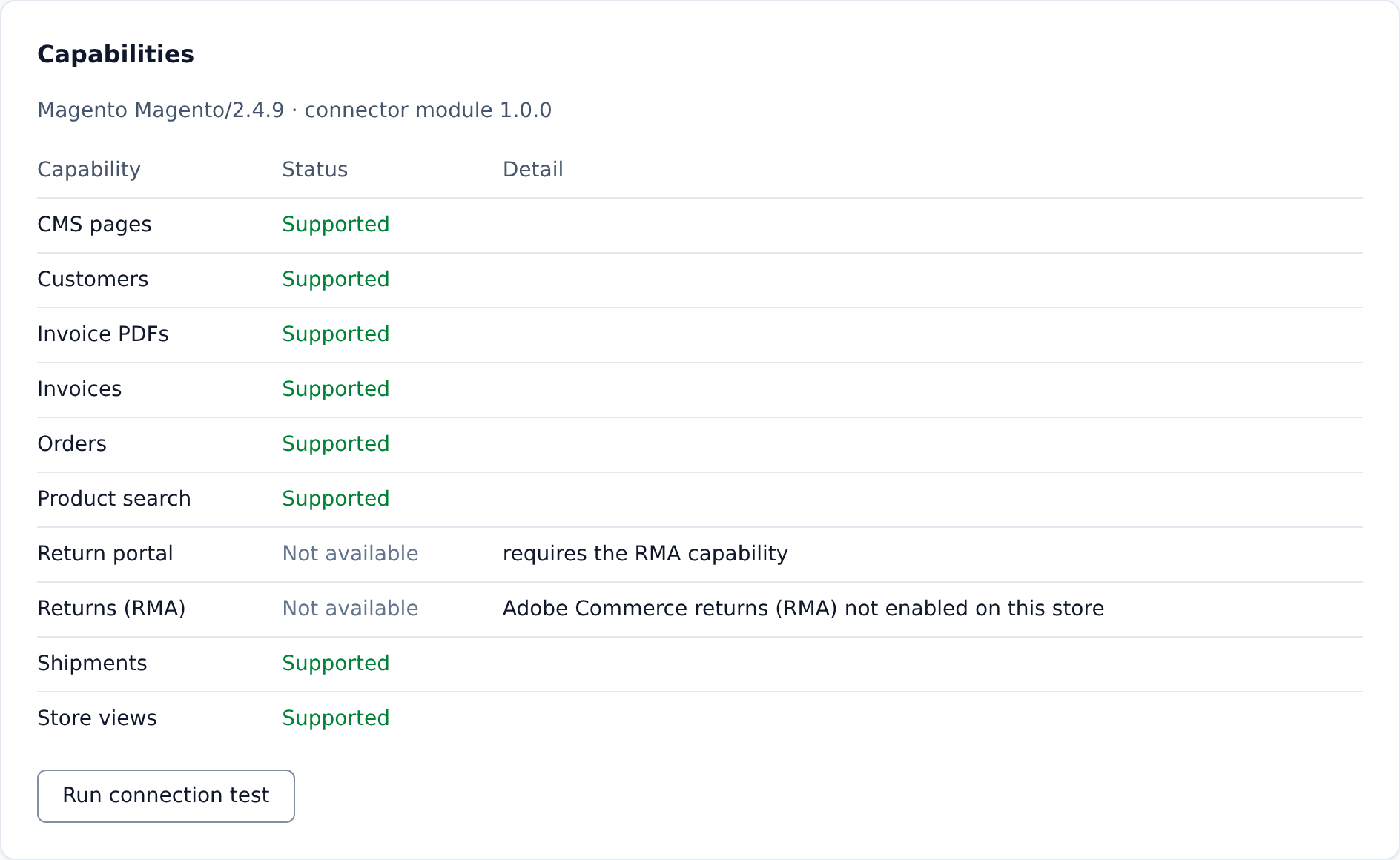
The connection test lists what works: orders, shipments, invoices, customers, product search, CMS pages and store views. Then tick the store views the assistant serves and pick each view's language.
- 5
Add the widget to your theme
Copy the script tag from Store → Widget and paste it before </body> on every page, for example in Content → Design → Configuration → your store view → Footer → Miscellaneous HTML. Flush the Magento cache afterwards.
- 6
Test it on your live store first
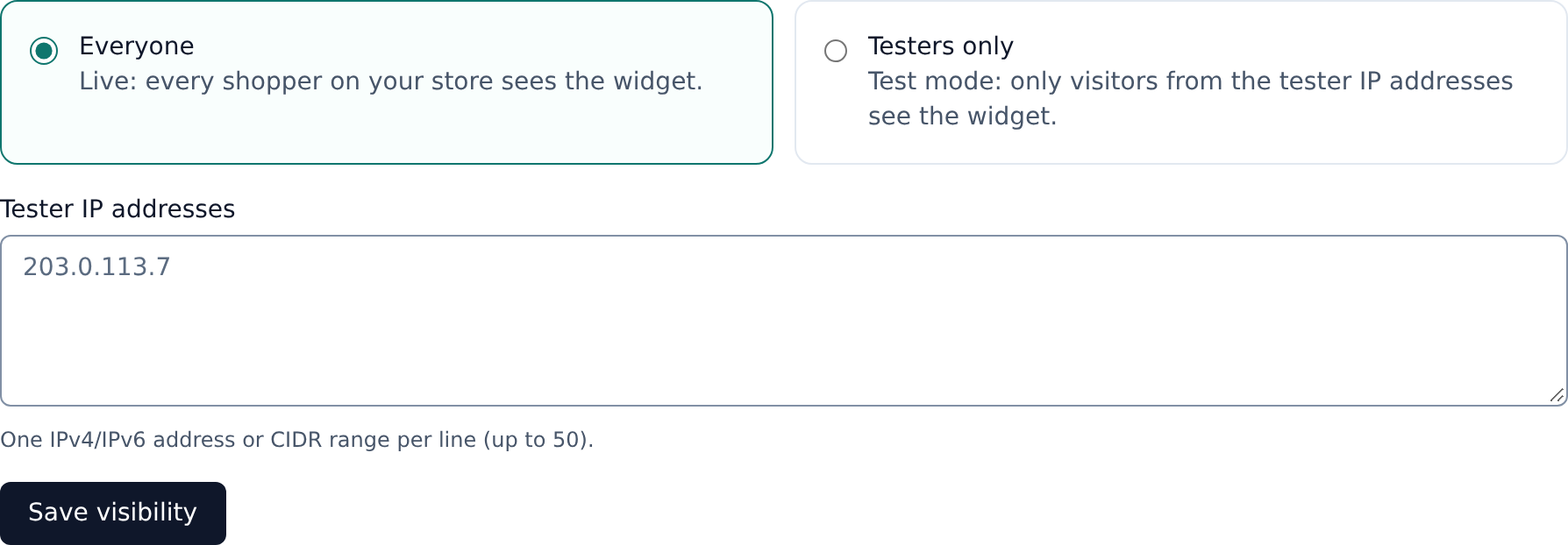
Set Who sees the widget to Testers only and add your team's IP addresses: only they see the chat while you add knowledge and try questions in the Playground.
- 7
Go live
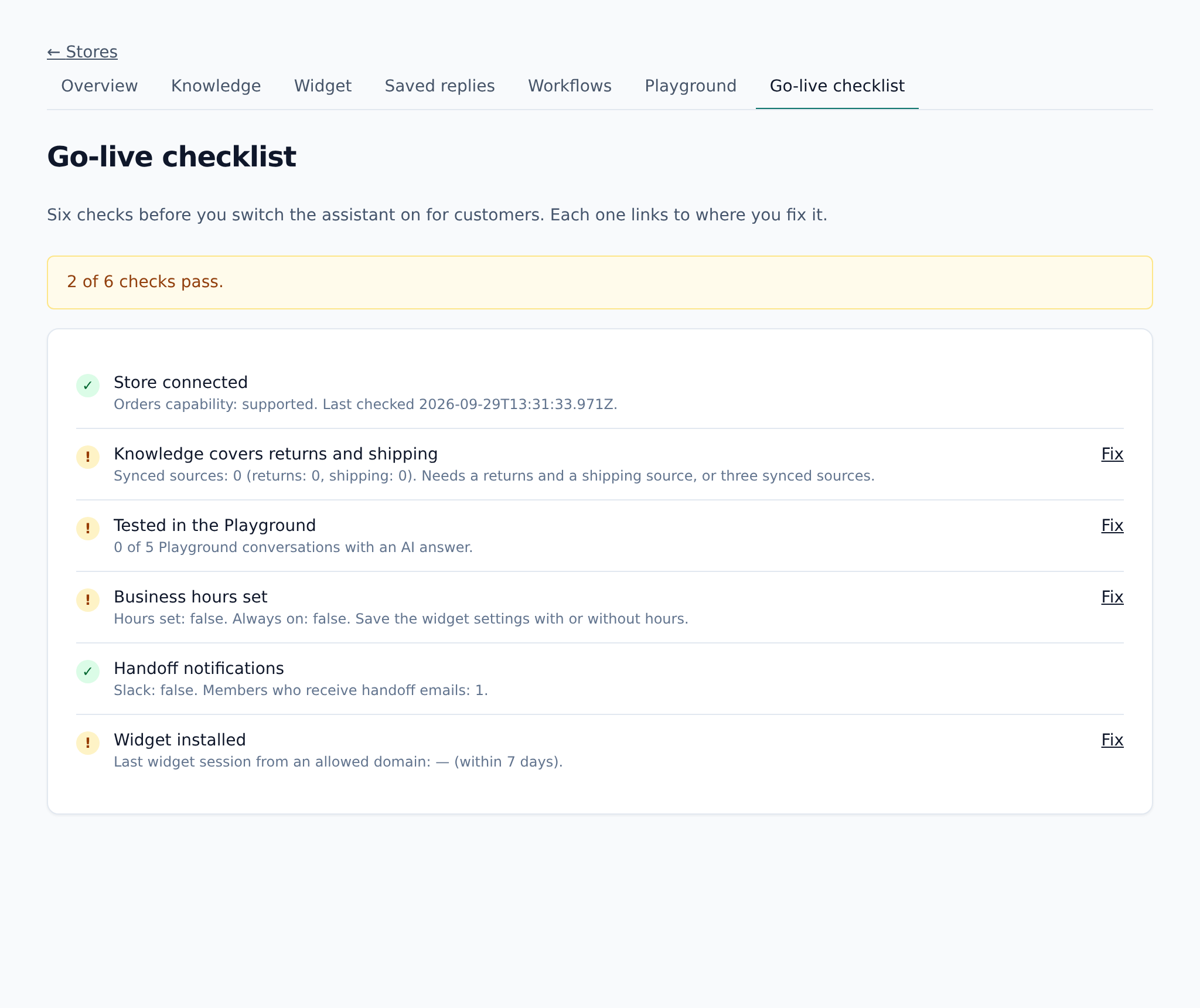
The go-live checklist shows what is left: connection, knowledge coverage, test chats, business hours, notifications and a first widget session. When it is green, switch the widget to Everyone.
Optional: the connector module
The module adds what the Magento REST API alone cannot provide.
- Invoice PDF links in the chat
- Signed-in customers are recognised and not asked for a verification code
- The cart is linked to the conversation for revenue attribution
composer require platform/module-connector
bin/magento module:enable Platform_Connector
bin/magento setup:upgrade
Then tick Platform connector API on the integration's API tab and press Reauthorize. The signing secret for signed-in customers comes from Store → Widget → Signed customer identity.